Monday, March 19, 2018

How To Control Your PC Using Your Android Device

How To Control Your PC Using Your Android Device


How To Control Your PC Using Your Android Device


Just follow the below steps to have complete access to your laptop or computer using your smartphone.
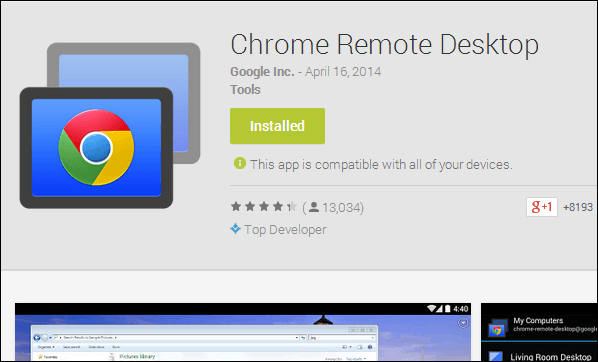
Step 1. First of download and install the app Chrome Remote Desktop on your smartphone.
Download Chrome Remote Desktop: – Android   ios Now open the app, you will see the label above My Computers and below the will be your Google account which you have to log into your device.
Chrome Remote Desktop
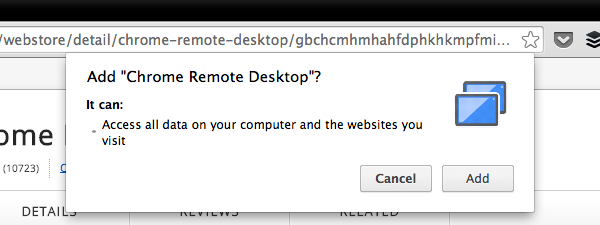
Step 2. Now there will be no computer till yet as you have not set any computer until that time. Now open Google Chrome  of your PC and install the extension Chrome Remote Desktop. Now the extension will be added to your Chrome and you will now see apps like program in your taskbar (bottom of the screen).
Chrome Remote Desktop
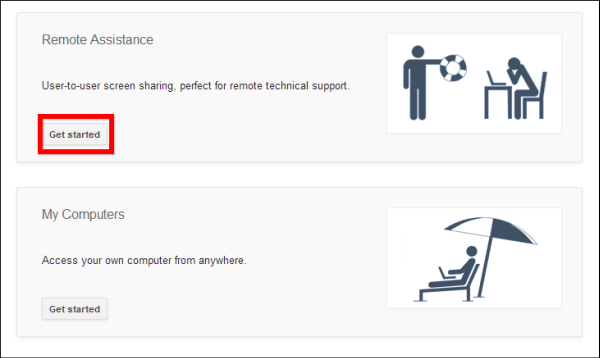
Step 3. Now click on it and you will see all apps that have installed in your Chrome and, at last, you will see Chrome Remote Desktop icon click on it. Now the installation process will begin and just proceed with the steps and a software will automatically download to your PC for remote sharing, just install it and proceed according to indicated and click on get started in access PC from anywhere.
Chrome Remote Desktop
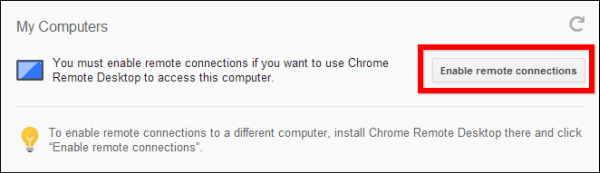
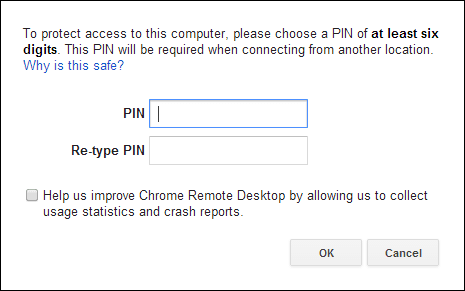
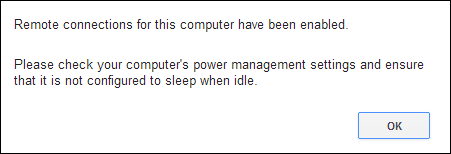
Step 4. Now you have to set a pin for Remote Computer share and after that enable the feature. Now go to your mobile the app and click on refresh at the right top and you will see your PC in a list.
Chrome Remote Desktop
Step 5. Click on it and enter your PIN there and you will now access your computer screen.
Chrome Remote Desktop
Step 6. That’s it! you are done with this, now you can do anything on your PC with your smartphone.
Chrome Remote Desktop
Also Read: How to Download YouTube Videos Easily with a Simple URL Edit

Using TeamViewer: Remote Control

You can access remote computers on the go with the TeamViewer: Remote Control apps for Android, iOS, Windows 10 Mobile, Windows 10, Windows Phone 8.1, Windows RT 8.1, and BlackBerry. Use your mobile device to provide spontaneous support or to remotely access an unattended computer.
Step 1. First of all, download Teamviewer:Remote Control on your Android device.
Using TeamViewer: Remote Control
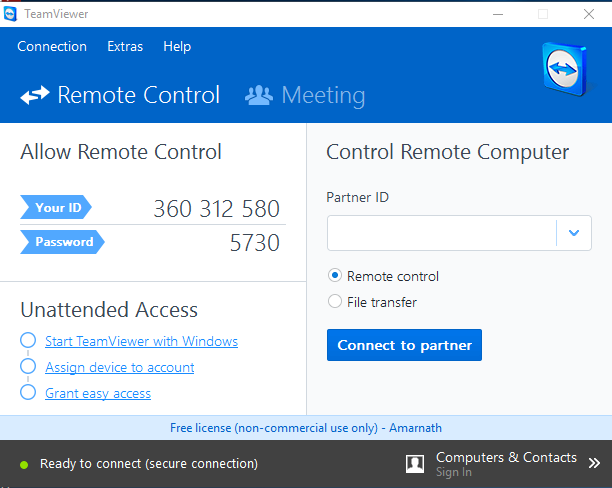
Step 2. Now download TeamViewer on your Desktop computer and run it.
Using TeamViewer: Remote Control
Step 3. Now in your Android, you need to enter your Partner’s ID (Desktop) in order to control the remote computer
Using TeamViewer: Remote Control
Step 4. After that, it will ask you for a password, simply enter the password shown on your Desktop app.
Using TeamViewer: Remote Control
Step 5. It will now show you the dialog box on Android app which will give you some information on how to control the pointer.
Using TeamViewer: Remote Control
That’s it ! Now you will see your entire computer screen on your Android. You can control and can even do computer tasks on your Android device.
Using TeamViewer: Remote Control

Best Apps To Control PC From Android

#1 KiwiMote

KiwiMote is one of the best apps you can have on your Android smartphone. KiwiMote basically allows users to control their computer through WiFi. The app supports all version Android above 4.0.1. Users just need to install a KiWiMote client on their desktop or laptop to control PC from Android.
The app allows users to connect both the computer and PC through WiFi router or hotspot. Users just need to scan the QR code displayed on the computer with the help of Android device to connect to the computer.

#2 Unified Remote

Unified Remote
Developer: Unified Intents
Price: Free
  • Unified Remote Screenshot
  • Unified Remote Screenshot
  • Unified Remote Screenshot
  • Unified Remote Screenshot
  • Unified Remote Screenshot
  • Unified Remote Screenshot
  • Unified Remote Screenshot
  • Unified Remote Screenshot
  • Unified Remote Screenshot
  • Unified Remote Screenshot
  • Unified Remote Screenshot
  • Unified Remote Screenshot
  • Unified Remote Screenshot
  • Unified Remote Screenshot
  • Unified Remote Screenshot
  • Unified Remote Screenshot
  • Unified Remote Screenshot
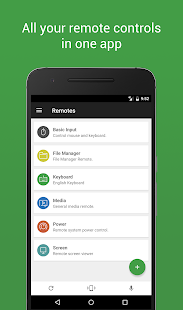
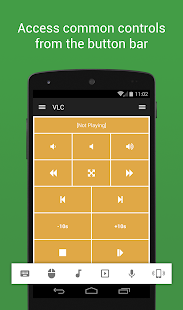
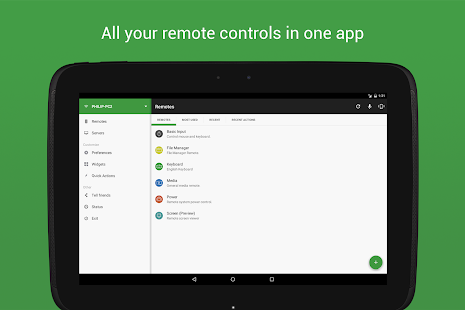
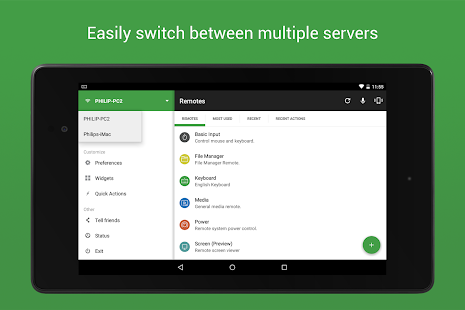
Another popular app for managing a computer with Android is Unified remote. This is the one-and-only remote control app for your computer. Turns your device into a WiFi or Bluetooth universal remote control for Windows PC, Mac, and Linux.
The app also follows the same procedure as of KiWiMote to connect with the computer. You need to download the server side desktop program to control your computer with the help of Android device.

#3 PC Remote
PC Remote
Developer: Monect
Price: Free
  • PC Remote Screenshot
  • PC Remote Screenshot
  • PC Remote Screenshot
  • PC Remote Screenshot
  • PC Remote Screenshot
  • PC Remote Screenshot
  • PC Remote Screenshot
  • PC Remote Screenshot
  • PC Remote Screenshot
  • PC Remote Screenshot
  • PC Remote Screenshot
  • PC Remote Screenshot
  • PC Remote Screenshot
  • PC Remote Screenshot
  • PC Remote Screenshot
  • PC Remote Screenshot
  • PC Remote Screenshot
  • PC Remote Screenshot
  • PC Remote Screenshot
  • PC Remote Screenshot
  • PC Remote Screenshot
  • PC Remote Screenshot
  • PC Remote Screenshot
  • PC Remote Screenshot
Well, this is another lightweight and simple app which runs on Windows XP, Windows 7, Windows 8, and Windows 10. PC remote can be used to control your desktop & laptop from Android via WiFi or Bluetooth. Well, you need to download the server side program on your desktop to connect to the Android device.
Well, the app actually has lots of features. You will get some useful features like keyboard, mouse and PowerPoint control within the app. The app also features a Remote desktop feature which allows users to view their desktop screen in real time and control it with touch input.
So above is all about for How To Control Your PC Using Smartphone. By this process, you can easily access your PC anywhere using your internet connection and through your Google accounts in both the device. This method is too uncomplicated and reliable to implement and after that, you can have full access to your PC and there will be no necessity to sit at the front of your PC and do the work. Don’t forget to share this cool post and leave a comment below if you facing any problem at any step.

Tuesday, May 31, 2016

How to disable the recent document history on your computer.

How to disable the recent document history on your computer...???


Recent Document History

Hi everyone here is new tricks I’m going to show you how to disable the recent document history on your computer. This is a great thing if you don’t show your recent document history.

The bad thing about Recent Documents History is that Windows XP has to calculate what should be put there each time you boot Windows, which can slow things down.

1. At first open the Registry Editor by pressing “windows + R” then  type “regedit” and then hit enter. (Select Start/Run, type regedit, and click OK).

2. Now go to “HKEY_CURRENT_USER\Software\Microsoft\Windows\CurrentVersion\Policies\Explorer”.
3. And then Create a NoRecentDocsHistory D_WORD key [Right Click® New ®DWORD (32- Bit) Value] . Double-click the value to open it once it is created.


4. Set the Data Value to 1 to enable the restriction with hexadecimal.
5. Click OK and close the Registry Editor. You'll need to restart the computer for the change to take effect.


Note: If you want to enable recent document then go to “HKEY_CURRENT_USER\Software\Microsoft\Windows\CurrentVersion\Policies\Explorer”. and delete “NoRecentDocsHistory” file that you have create and restart your computer.

Monday, May 30, 2016

How to Remove the Shutdown Button from the Windows 10 Login Screen

How to Remove the Shutdown Button from the Windows 10 Login Screen


When you first turn on your system or when you lock your system, Windows displays a simple login screen which enables you to log in to your system. On the login screen Windows 10 provides you with different options like Ease of Access, Power options, Sign-in options, etc. The Power button on the login screen allows you to quickly restart, shut down, or put your system into sleep mode. As useful as it is, you may sometimes need to disable or remove the Power button from the login screen so as to prevent other users from shutting down your PC when it is locked. Here is how you can remove a shutdown or power button from the Windows 10 login screen To remove the power button from the Windows 10 login screen you can either use the Group Policy Editor or the Registry Editor. I will show both ways; follow the one you are comfortable with.
Removing the shut-down button from the login screen using the Group Policy Editor is the easiest way. To start, press “Win + R,” type gpedit.msc and press the Enter button.
win10-remove-shutdown-button-gpedit-run-command
The above action will open the Windows Group Policy Editor. Here, navigate to the follow policy on the left panel: “Computer Configuration -> Windows Settings -> Security Settings -> Local Policies -> Security Options.”
Find and double-click on the policy “Shutdown: Allow system to be shut down without having to log on.”
win10-remove-shutdown-button-select-policy
This will open the respective policy settings window. Here, select the “Disabled” radio button, and then click on the “Ok” button to save the changes.
From this point onward you won’t see the power button on the login screen.
If you ever want to revert back, simply change the policy setting from “Disabled” to “Enabled” and you are good to go.
If you don’t have access to the Group Policy Editor, then you can use the Windows Registry editor. However, make sure that you have a good backup before making any changes.
To start, press “Win + R,” type regedit and press the Enter button to open the Windows Registry Editor.
Once the Registry Editor has been opened, navigate to the follow key on the left panel:
HKEY_LOCAL_MACHINE\SOFTWARE\Microsoft\Windows\CurrentVersion\Policies\System
win10-remove-shutdown-button-select-key
Right-click on the empty space in the right pane, and then select the “New” option and then “DWORD (32-bit) Value.”
The above action will create a new Dword Value. Rename the new value to “shutdownwithoutlogon” and press the Enter button.
After creating the value double-click on it and make sure that the value data is set to “0.” If the value data is not set to “0” then change it accordingly.
win10-remove-shutdown-button-value-data-to-0
You’ve successfully removed the power or shutdown button from the login screen. If you ever want to revert back, simply change the value data from “0” to “1” and you are good to go.


Friday, February 5, 2016

Unlock PDF online

Unlock PDF Online


Many people face different problems while unlocking PDF  file online with Google Chrome.In this article i will share with you a 100% working trick to unlock PDF online. You don’t have to feel upset that you can’t unlock PDF online on which you have used the password and now you forget the password of that file but i will tell you that how you can unlock PDF online .Google Chrome browser has in-built PDF Reader and PDF author choices. With it new choices, you’ll just subtract any parole from PDF files by combining these two choices. Here the easy ways in which during which to induce obviate any parole from PDF files with Google Chrome. I nice way to unlock PDF online.
Unlock PDF Online
  • Simply drag PDF parole protected file into Google Chrome browser.
  • Now, it’ll prompt you to enter the parole for the file.
  • Sort the parole into the box and hit the Enter key to open the file.
  • Attend “File” or else menu of Google Chrome, click on the “Print” (Ctrl+P only for window users, Ctrl+P only for Mac users).
  • Select the destination printer as “Save as PDF file” and press save
  • As button, then re-open saved file, you will noted that there’s no parole area unit about to be needed to open it. If you’ve got enabled Google Cloud Print, you moreover might can save the PDF files on to Google Drive.
  • Currently your PDF files unit of measurement searchable and straightforward to hunt out.
This is the foremost effective and most easy due to subtract parole PDF files by exploitation Google Chrome. However, they’ll have risk once your PDF files didn’t have secure parole protection. It’s responsibility to defend your personal data that may be gift or show in your PDF file. Just follow these step carefully you will surely unlock PDF online.

How to Hack WhatsApp Account

How to Ha*k WhatsApp Account


Need to Ha*k WhatsApp Account?
Below is a WhatsApp Ha*k Guide with Complete Instructions!
Learn how to ha*k WhatsApp in simple steps with the following easy to follow and foolproof tutorial. Since WhatsApp has become one of the popular app to share messages and media instantly, it has also become a favorite place for many to engage in illicit activities. Therefore, in order to investigate the truth people are left with no choice other than to ha*k WhatsApp account.

Possible Ways to Ha*k WhatsApp

The following are the only two ways to ha*k WhatsApp account:

1. WhatsApp Ha*k using a Spying App: The Easiest Way

Even though there are several ways to ha*k WhatsApp, using a spy app is by far the most simple and easiest way. This method requires no prior ha*king knowledge or technical skills to carry out and hence more suitable for common people. Installing a spy app to ha*k WhatsApp is as simple as installing any other app on mobile. Out of several apps out there, mSpy is one of my favorite one to ha*k WhatsApp:
WhatsApp Hack with mSpy
mSpy Features:
  • Ha*k phone Calls and Text Messages.
  • Ha*k WhatsApp, Skype and other popular messengers.
  • Track Real-Time Location with GPS Tracker.
  • Spy on Contact List and Web Browsing activities.
  • Monitor Emails, Pictures and Videos.
  • Operates in Hidden Mode and remains Undetected!
  • No Rooting Required!

How to Ha*k WhatsApp with this App?

  1. Download and Install the app on to the target phone which takes not more than a minute.
  2. After this is done, the app silently records all WhatsApp activities in hidden mode.
  3. All the recorded WhatsApp chat is sent to your online account.
  4. View all the information from anywhere at anytime with your online account.
You can download mSpy from the link below:
Compatiblity: Android, Apple iPhone, BlackBerry and Windows Mobile